
The default sign-in method for TARGIT in the CalmCo environment has traditionally been a username and password. As part of our ongoing efforts to support evolving security requirements and provide both a more simple and more secure user experience, we are introducing a new sign-in option using Microsoft Entra ID.
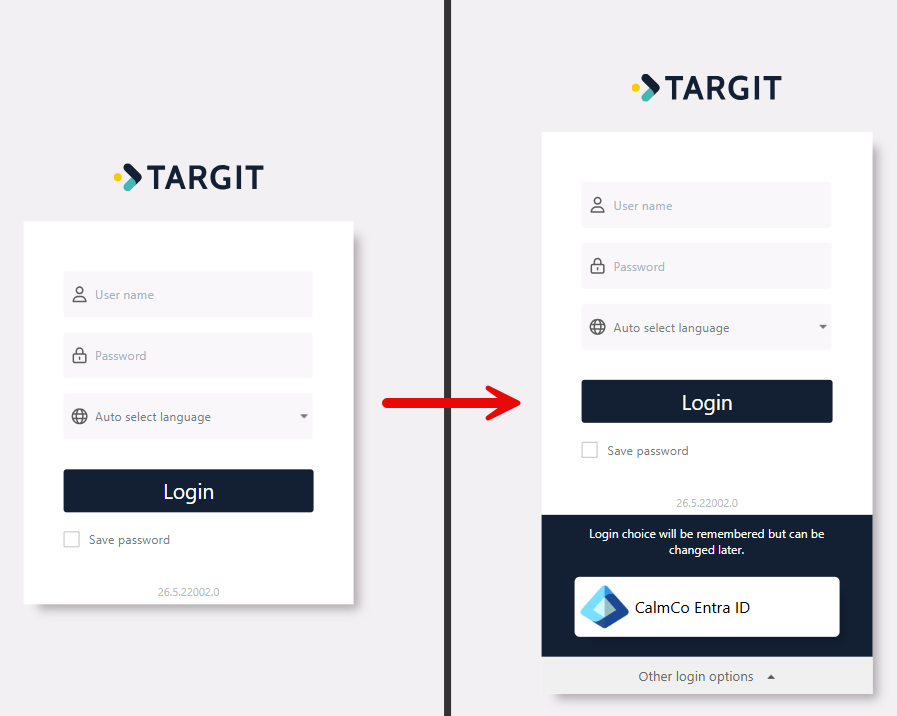
As a result, you will now notice an "Other login options" link on the sign-in page. When you open this menu, you will see the new "CalmCo Entra ID" option.
We recommend using this sign-in method as it provides a more secure and streamlined login experience. Before you can sign in using Entra ID, you must have Microsoft Authenticator configured for your account. This is required to verify your identity and complete the sign-in process.
This procedure is the same for both our web client and the Windows client.
Is this your first time using Entra ID?
The use of Microsoft Authenticator is enforced within the CalmCo domain. That means that, if you have not done this before, you will need to download and install the app on your phone and configure your @calm-co.bi account. For detailed information on how to do this, you can consult this knowledge article:
The Signin Procedure
Follow the steps below to sign in to TARGIT using the Entra ID method:
- Click on "Other login options"
- A button appears with the text "CalmCo Entra ID". Click this button.
- You will be sent to a Microsoft login page. In case the account is not yet visible in the list or you are asked to enter an account name, enter your account name. This is typically in the format [first name].[last name]@calm-co.bi.
The prefix of the address is the same account name you have been using before or as was provided by TARGIT when they initially delivered the account to you.
Click "Next".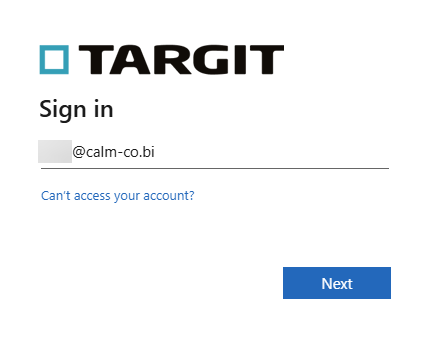
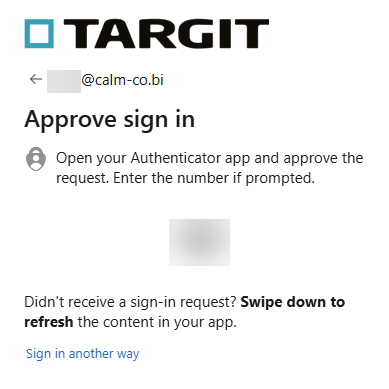
- By default, you need to enter your password after which you will get a sign in approval notification on your phone. Open the Authenticator app and confirm with the number fhat is visible on your screen.
- In case you want this, you can tell your browser to keep you signed in. Depending on your personal settings or your organisation's settings, this may be cleared after shutdown.
You are now signed in and ready to use TARGIT.
In the Authenticator App, you can also activate sign in without password. After that activation, you will always immediately be asked for your Authenticator confirmation, skipping the password entry.