
Users who create or maintain TARGIT analyses, reports, and other content must install the TARGIT Windows Client directly on their local machine.
This article explains how to install and connect the TARGIT Client in our on-premises environment. The installation only takes a few minutes and does not require local administrator knowledge beyond running the installer.
TABLE OF CONTENTS
Prerequisites
- You have network connectivity to web.calmco.bi to open the TARGIT web portal.
- You have a valid TARGIT user account.
Installation Steps
Download the TARGIT Client
Open the following URL in your browser: https://web.calmco.bi:1301/install
This downloads the Client Installer.
Run the Installer
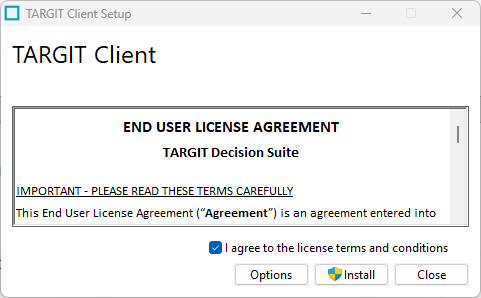
Open clientinstall.exe. This tool is nothing but the installer of the correct TARGIT Client version, depending on the Server you are connecting with.
Agree to the License T&Cs and click Install.
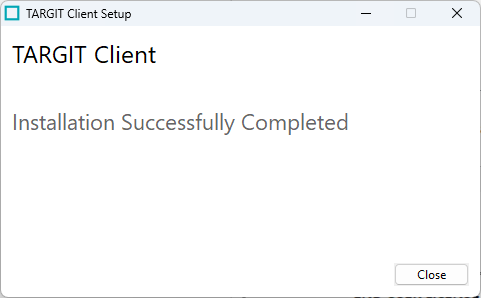
Await confirmation that the client is installed.
Connect to the TARGIT Server
You PC now has an app called "TARGIT". Launch this application. A new window appears asking which server to connect to.
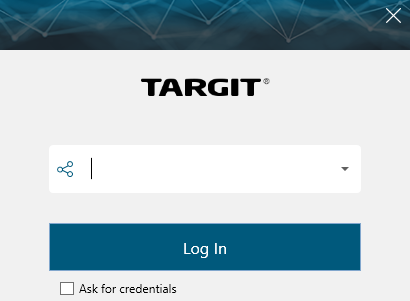
Make sure you enter "web.calmco.bi" here and check "Ask for credentials".
In case you do not check "Ask for credentials", TARGIT will by default try to sign in using your Windows credentials, which will always fail!
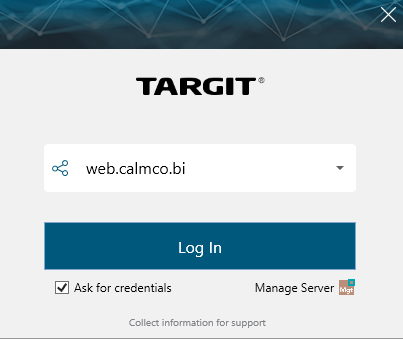
Click login and press "Windows Security". This will bring up a new screen where you can enter your username and password. Use your @calm-co.bi credentials.
You can enter just your username with and without the domain prefix as shown underneath. Both are valid.
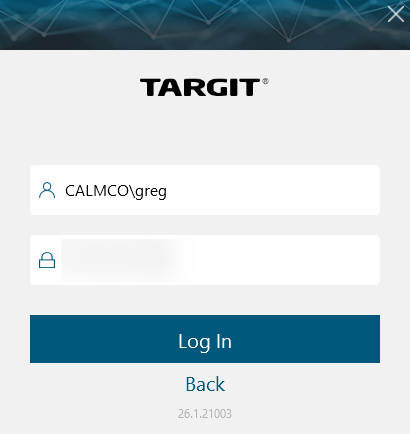
Click login and you are greeted with the familiar interface of TARGIT.
You will now see a new TARGIT Shortcut in your start menu, taking you directly to web.calmco.bi.
Installation on a Terminal Server
The procedure described above works on Windows PCs, but not on Terminal Servers. A Terminal Server does not have the capability to automatically download the correct TARGIT client when connecting to the Automotive Server Environment. Therefore, the Client Installation must be done manually.
This can be achieved in one of two ways.
- CMD: execute the following command: Start targit://web.calmco.bi/install
- Windows Run: execute the following command: targit://web.calmco.bi/install
Need help?
In case you are having difficulties, feel free to reach out to TARGITAutomotiveSupport@forterro.com.