For saving a analyses as Excel, there is an Excel button foreseen on the File tab.
When your analyses is open, you can press the arrow next to the Excel sign to open the options. There are 3 options available
- Open: this will open the Excel on the server. (This should not be used because there is no Excel license available on the server.)
- Save: This will save the Excel on a location of your choice with standard options (Preserve formatting and not repeating dimension members for all rows/columns)
- Custom Export: This will save the Excel on a location of your choice and you can choose the options.

The first time you Save, you will need to select the correct location. You can do this via the Quick Access or the This PC tab.
When you save in the future, it will remember the path you have chosen.
When you select the Custom Export save, you can select to preserve/remove formatting and to repeat the dimensions.
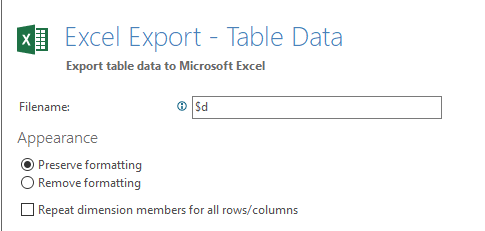
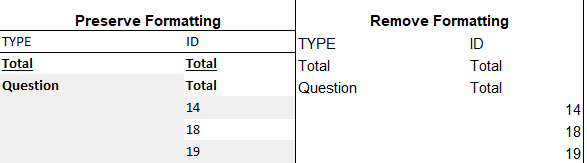
When you choose Preserve formatting, your table will have the layout of the analyses (Left side if picture below)
When you choose Remove formatting, your table will have a standard layout (right side if picture below)
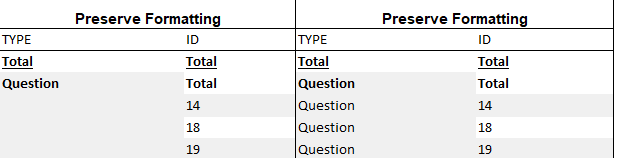
When you choose to Repeat Dimension members for all rows/columns, the system will fill in all the dimension tabs (Right side of picture below). This is mostly used if the Excel will be used to filter data afterwards.